
From installer to on the air
Install Kainos, answer a few questions about your Hermes Lite 2, press POWER. This guide walks you through it, then shows you around.
Before you start
A Windows PC
Windows 10 or 11, 64-bit. On an older or slower PC, Kainos has a light mode.
A Hermes Lite 2
Powered on and connected to the same network as the PC.
Speakers and a microphone
The HL2 has no speaker output of its own, so receive audio and your mic go through the PC.
Your callsign and grid square
Used for spots, FreeDV RADE and the FreeDV Reporter, and with your licence class for the band plan.
Install
Download the installer
Get
Kainos-<version>-x64.msifrom the download page.Run it
Kainos installs to
Program Files\OpenHPSDR\Kainos-HL2. It doesn't change or remove Thetis, and a newer Kainos installs over an older one and keeps your settings.
The first start
If Thetis is on the same PC, Kainos asks how you'd like to start:
Set up for my HL2
Fresh settings and a few questions in the setup wizard.
Import my Thetis settings
Copies your Thetis databases, meters, skins and cmASIO settings, then asks the same questions. Close Thetis first. Thetis isn't changed.
Skip
Start with Kainos's default settings.
The setup wizard
The wizard sets Kainos up for your HL2. Nothing changes until you press Apply on the last page. You can run it again any time from the Setup menu.
| Page | What it asks |
|---|---|
| Station | Your callsign and grid square, your country and licence class (for the band plan). |
| Hardware | Which boards your HL2 has: the N2ADR filter board, the HL2 I/O board, the built-in PA, and band data for an external amplifier. Clock and latency are under Show advanced options. |
| Audio | Your speakers and microphone. Press Play a test tone to check. |
| Look | Kainos or Classic layout, UI scale, light mode, and which right-hand column tabs start open. |
| Summary | Exactly what will change. Press Apply. |
Connect to the radio
Press POWER at the top of the left-hand column. The panadapter and waterfall come alive.
Find your way around
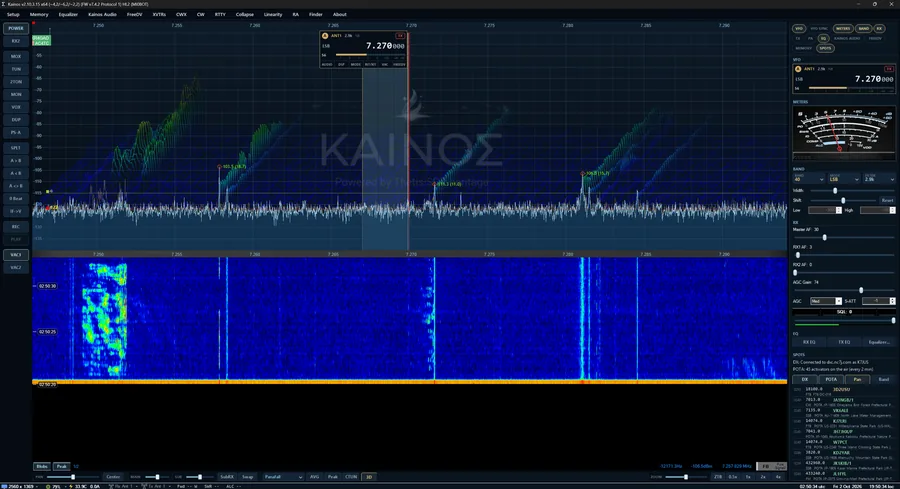
The Kainos layout puts the panadapter and waterfall at full height, with controls in two slim columns. Prefer Thetis's look? Switch to Classic in Setup > Appearance > Kainos > Layout.
 1
2
3
4
5
6
7
8
1
2
3
4
5
6
7
8
- Menu bar — Setup, Memory, Audio, Modes (FreeDV, RTTY, CW, CWX), Tools and Compact. Report a bug is at the top right.
- Left-hand column — POWER, RX2, MOX, TUN, 2TON, SWR, MON, VOX, split and VFO buttons, REC/PLAY and VAC. Right-click a button for its settings.
- VFO flag — antenna, filter, DSP, mode, frequency and S-meter. Roll the wheel over a digit to tune by it; click the frequency to type one.
- Panadapter — with the band plan along the bottom and spot tags along the top.
- Waterfall — the last few seconds of the band. Click a signal to tune to it.
- Bar under the panadapter — pan, zoom, display mode, AVG / Peak / CTUN, multi-RX pan and 3D.
- Right-hand column tabs — click to turn VFO, METERS, BAND, RX, TX, EQ, SPOTS, KIWI and others on or off. Drag them into your own order.
- Spots — DX cluster and POTA activators, live. Click one to tune.
First things to try
Tune from the flag
Point at a digit of the VFO frequency and roll the mouse wheel. Click the frequency to type one in.
Chase a spot
Turn on the SPOTS tab and click a callsign tag on the panadapter. Kainos logs into the cluster with your callsign.
Try FreeDV RADE
Open Modes > FreeDV, pick RX1 and press RADE. Find someone to listen to with the Reporter button.
Listen far away
Open the KIWI tab, pick a nearby KiwiSDR and press Follow to hear your frequency from somewhere else.
Shape your audio
Audio > Kainos Audio has EQ, compressor and AetherVoice for receive and transmit. Test transmit into a dummy load first.
Back up your settings
Once it's how you like it: Setup > Back up settings now. Restore or keep profiles in the Database Manager.
If something's not right
No receive audio
The HL2 has no speaker output of its own: audio goes through the PC (VAC 1). Run the setup wizard's Audio page (Setup > Run setup wizard), pick your speakers and press Play a test tone. Check Master AF and RX1 AF in the RX tab, and that squelch (SQL) isn't on.
Kainos doesn't find my radio
Check the HL2 is on and on the same network. In Setup > General > H/W Select, press Discover and check the network settings. Only one program can use the radio at a time: close Thetis or anything else connected to it.
Kainos is slow on my PC
Turn on Light mode (Setup menu) and turn off the 3D panadapter. Light mode lowers the display to 20 frames a second; the setup wizard suggests it on PCs with 4 or fewer processor threads.
My Thetis meter containers disappeared
Meter containers docked on the main window are hidden in the Kainos layout. Make one a separate window in Setup > Appearance > Meters/Gadgets, or use the Classic layout, which shows them all.
A KiwiSDR disconnects me straight away
The receiver may be full, or allow one connection per address. Try another one from the list.
Can RX2 use a different antenna from RX1?
No. The HL2 has one receiver input, so both receivers share the selected antenna. The HL2 I/O board can switch to a receive-only antenna per band; see HL2 I/O board antennas.
Where are my settings?
%APPDATA%\OpenHPSDR\Kainos-x64. Errors Kainos catches are written to KainosErrors.txt there, and a bug report includes the latest lines.
Is there a Linux or Mac version?
Not at the moment. Kainos is built on Thetis, which is a Windows program.